Are you contributing to one of the world’s largest collaborative genealogy projects?
With more than 1.7 billion tree profiles, the FamilySearch Family Tree is the biggest shared family tree on the web. Every year, millions of people contribute to its growth. In 2024 alone, users added more than 150 million people and 530 million sources.
That second figure is especially important: Users added 3.5 times more sources than they did people in 2024. With a total of 3.61 billion sources, the Family Tree has about two sources per person—but that ratio is trending in the right direction.
All of them—records, tree-building tools, and profiles added by other users—are completely free.
Read on for a guide to this powerful collaborative research tool. There’s a bit of a learning curve, but the basic steps are these: add, build, extend, merge, and repeat.
Why the FamilySearch Family Tree?
Why upload your research to a shared tree instead of building your own somewhere else? In a word: collaboration. Collective knowledge can be a powerful thing.
Different branches of a family may have handed down different photos, documents and stories. A shared tree helps you gather that disparate information from multiple people and places, then publish it in one, well-sourced place.
Of course, it doesn’t always work that way. Sharing a research space with everyone can get messy. Someone may enter conflicting data on your shared ancestors or connect them to people who aren’t actually related. To prevent frustration (and the undoing of good research), many people keep a personal tree elsewhere and simply share what they know on the Family Tree.
Some users are also motivated by ensuring relatives everywhere (and in the future) will be able to access the knowledge they’ve collected. Others simply like pitching in to a big shared project, or hope to connect with relatives.
Whatever your motivation, you can take simple steps when adding and editing profiles to keep the FamilySearch Family Tree strong and reliable.
Add: Creating New Profiles
If you haven’t done so already, create a free FamilySearch account. As part of that process, you’ll be prompted to build your tree; you can also find a guide under Family Tree > Overview.
Add genealogical data about yourself, your parents and your grandparents. Enter the most-complete information possible: full names at birth, dates and places of births, marriages and deaths. (As we’ll see, you can specify different kinds of parent-child or partner relationships later.) Note that FamilySearch keeps profiles of living people private.
When you enter information about a deceased relative, you may be asked whether any existing profiles (called person pages) match your relative. Ideally, the Family Tree has just one profile for each deceased person in the world. So if a page already exists that is clearly your relative, accept the match, even if you spot errors. (You can correct them later.) All relatives already attached to that person page will automatically populate as well.
If the Tree doesn’t yet include a profile, keep entering relatives’ names until you’ve connected each ancestral line to existing pages. Watch for deceased aunts, uncles, cousins and in-laws, too. As you add them, follow the same process: Review existing pages first before creating new ones.
Each unique profile is assigned an ID number: four characters, a hyphen, and three more characters. The ID number appears at the end of the person’s page URL; for example, William W. Elder’s ID number is K69Q-SY2 and his profile is here. You can search the Tree by ID.
Build: Edit Profiles in the Family Tree
Once you’ve added basic information to a new profile (or connected to an existing one), add all the details and documentation you have. Once you do, the profile may look something like this. (Note: You’ll need to be logged in to your FamilySearch account to see person pages.)
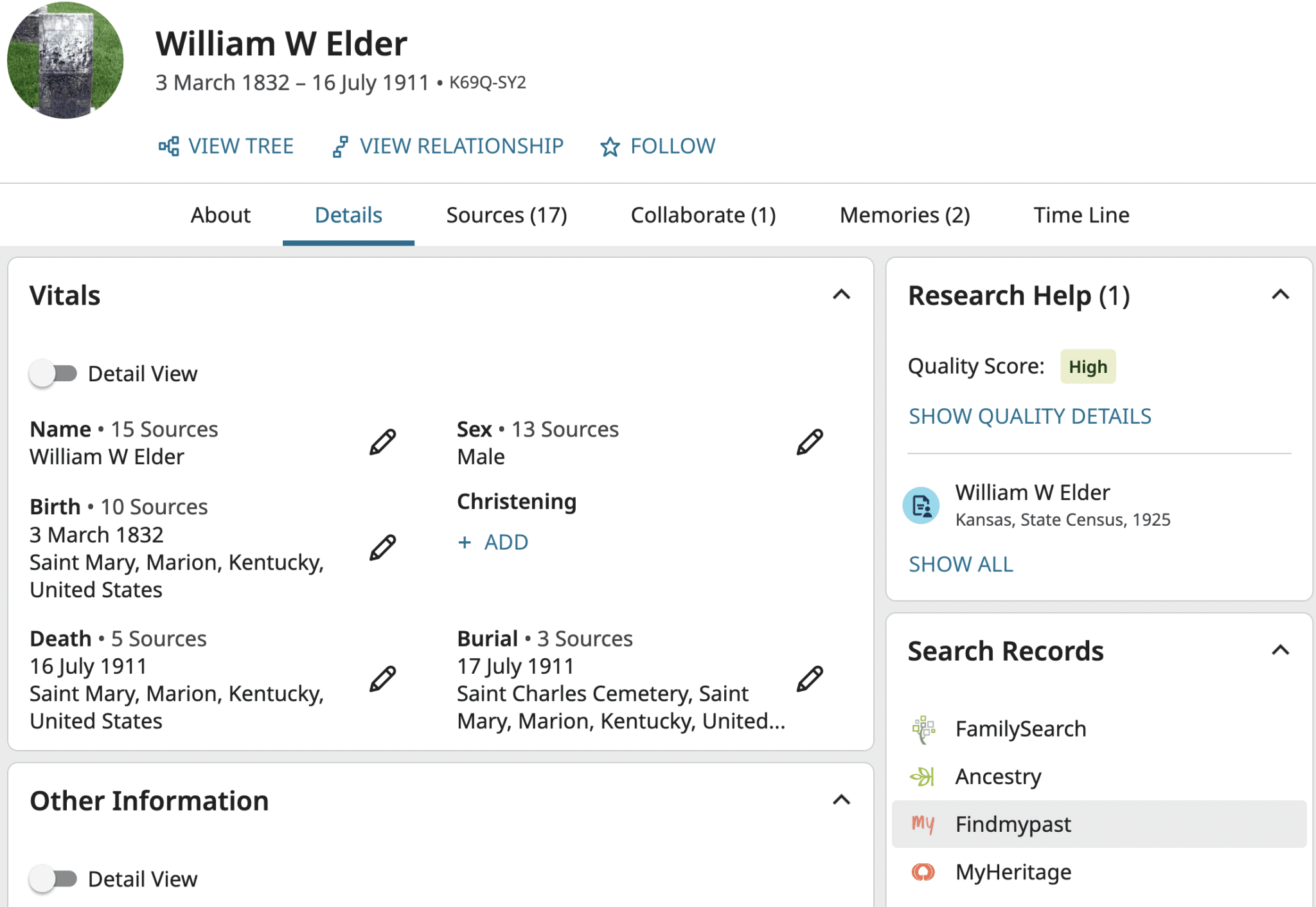
At the top of the person page, you’ll see birth and death dates, plus the ID number. You’ll also see options for viewing the person in the tree (i.e., their immediate relationships) and viewing your relationship to the person (i.e., what relatives you share, if any).
1. Details
Beneath the summary information are several tabs. Details is perhaps the most robust, with fields for:
- Vitals: Name, sex, birth, christening, death and burial
- Other Information: Alternate names, events (bar/bat mitzvah, military service, immigration, naturalization, residence, occupation, religious affiliation, nobility title, stillbirth, cremation, or custom event), and facts (caste/clan name, national identification/origin, no couple relationships/children, physical description, race, tribe, custom fact)
- Family Members: Spouses (representing all kinds of partnerships), children, parents and siblings
You can edit existing details—whether added by you or another user—by clicking the pencil icon. Use the suggested standardized formats for dates and places.
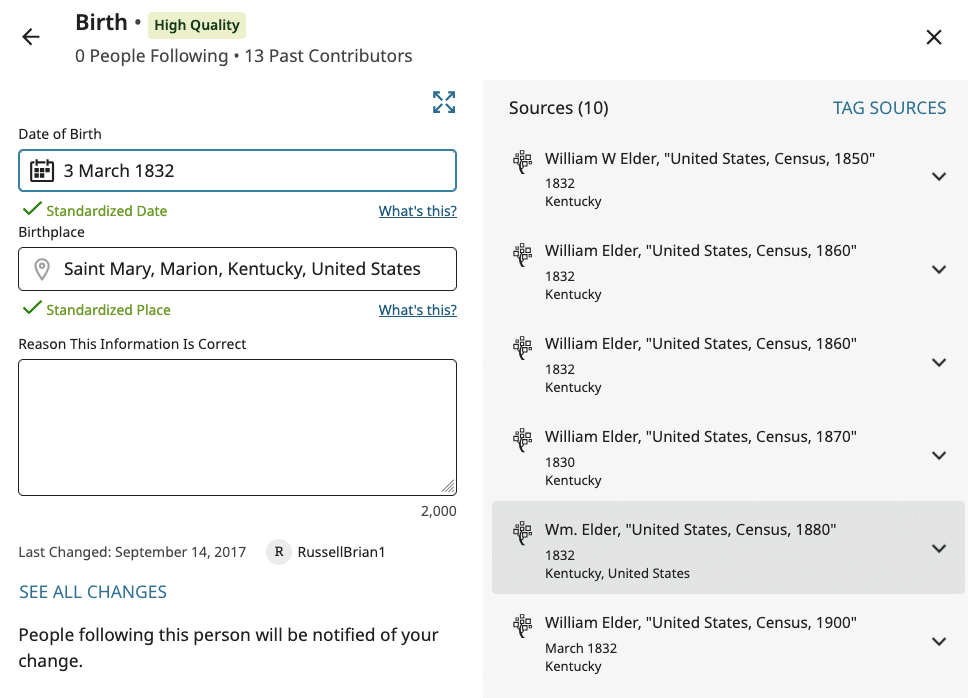
Each piece of information states if and how many sources are attached; click a fact to see sources and a history of changes to that detail (including which user made them). A full history of changes is logged under Details > Latest Changes (on the right sidebar).
Whenever you make a change, justify it in the Reason statement box. Comment on anything that might seem contradictory or inaccurate. For example, on William W. Elder’s person page, a reason statement under his name explains the use of a middle initial rather than a full middle name.
2. Sources
Add your own sources to support changes, either by tagging those already under the Sources tab or adding new ones. If you’ve previously used a source on another person page, add it from your Source Box.
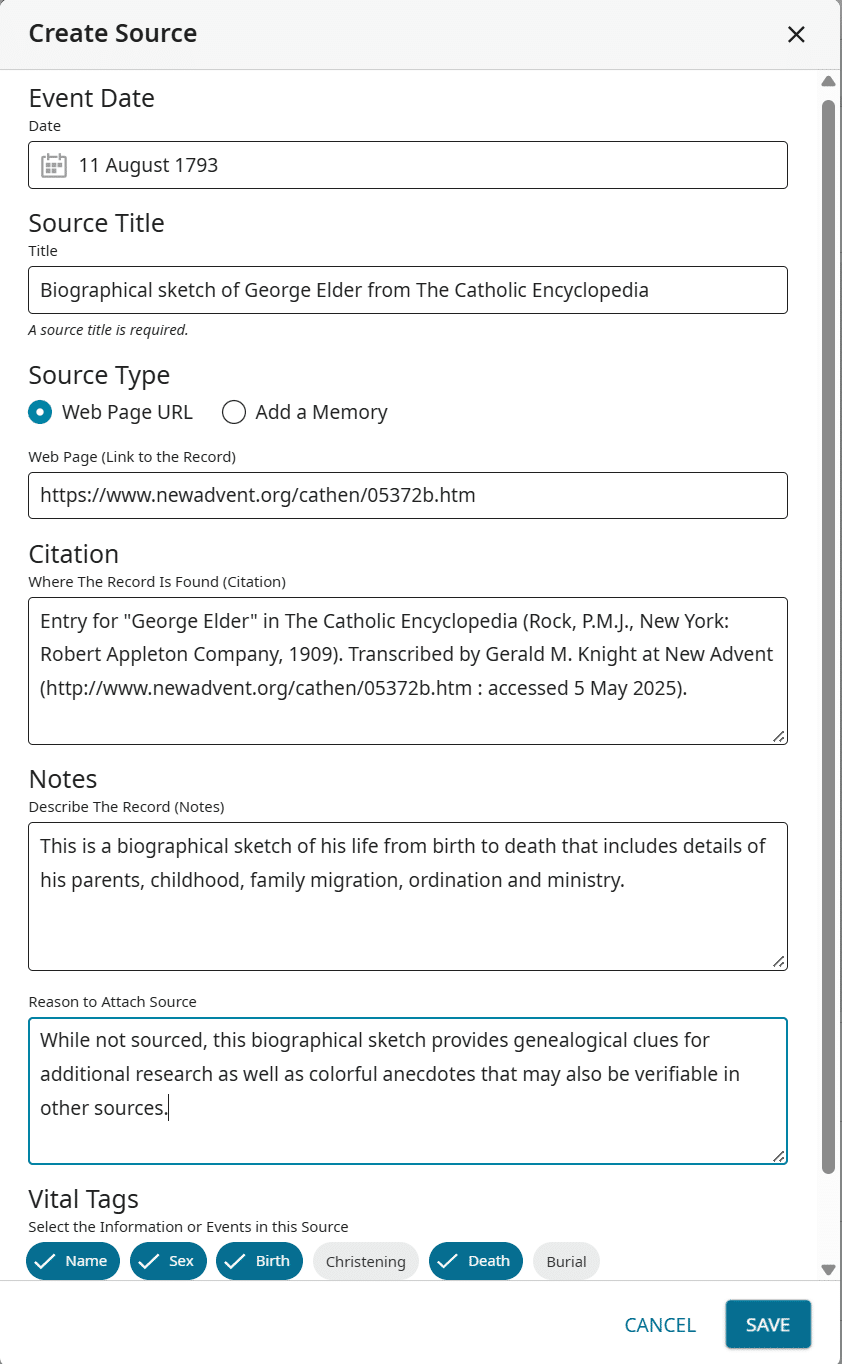
For new sources, you can add a date for the event, a title, a URL (if a web source) and any citation information or notes. Records you or others have added to a person’s page directly from FamilySearch collections automatically show up as Sources. Learn more about them at the Help Center.
From the Source tab, you can also remove erroneous sources from a person by clicking the down arrow to open a source, then Detach.
3. Memories
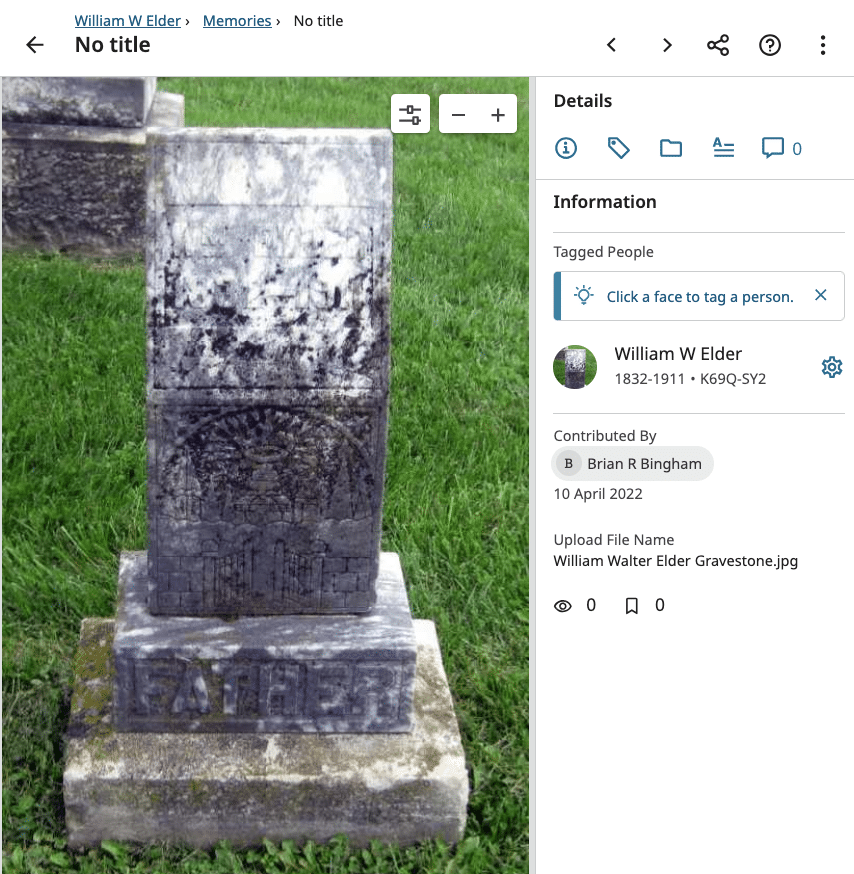
The Memories tab is where you can find—or contribute—unique items from family lore or archives. You or other users can upload:
- Family photos
- Images of news clippings, family letters, diaries, family group sheets, tombstones and more
- Copies of death certificates or other official documents
- Personal stories in text form
You can use Memories as Sources, so long as the content isn’t copyrighted. Learn more about sharing stories through the FamilySearch Tree.
4. Record hints
Under Research Help, watch for Record Hints from FamilySearch’s enormous collections of historical records. By design, these Record Hints have a high likelihood of matching the person page. More-experienced researchers may want to Expand Record Hints under Settings > Account to include weaker hints, which require more judgment calls.
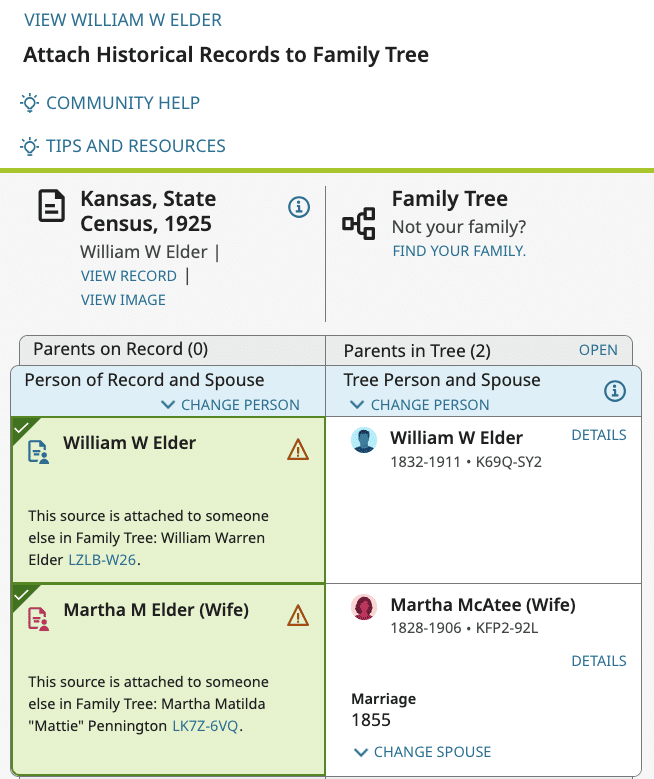
As with record hints on other websites, carefully consider how the details in a record (names, dates, places, family members, etc.) line up with what you already know. Read a guide here.
From Research Help, you may also see research suggestions and a Quality Score, which ranks a person page’s content based on several factors.
After reviewing hints, go to the Search Records section below to review results from FamilySearch collections that were either not included in Record Hinting or were not identified by the hinting system as tied to this person page. There, you’ll often find additional records. And you can search for this person on partner websites—provided you have qualifying subscriptions.
Extend: Add More Details
As you can, add details beyond basic life events and immediate family members. FamilySearch’s comprehensive—and growing—collection of tools allows you to document a wider variety of life events, loved ones, and memories.
Relationships
The bottom section of the person page shows connections to parents, siblings, partners, children and other relationships. Are any missing? Remember: As you add a relationship, you may be prompted to review existing person pages before adding a new one.
For parent-child connections, you can specify biological, adoptive, foster, guardianship and step-relationships on the child’s person page. Click the pencil icon next to the child’s listing under their parents’ names to edit the relationship type and add a Reason statement.
For couples, click the pencil icon next to their marriage data. Add details about marriages, divorces, cohabitation, common law rulings, and annulment events, or add descriptive notes for other relationships.
The Other Relationships section lets you add apprenticeship, employment, enslavement, godparent, household, neighbor or relative relationships.
When possible, add new people from the person page of an existing parent, partner or child, rather than as an unattached person (which you can do under Family Tree > Recents). This minimizes the number of “orphaned” or “floater” person pages, which (without the context of known relatives) can be difficult for others to identify and place on the tree. Include as many uniquely identifying details, sources and memories as possible.
Memories
Some Memories apply to multiple people, and FamilySearch makes it easy to attach them to multiple profiles. Copy a person’s ID number, then navigate to that Memory. Click on the image where this additional relative appears (e.g., where they’re named in a document) to add a tag, then copy the ID.
Warning: Memories attached to living people (if also attached to deceased people) are potentially viewable by others. To prevent this, change the Memory’s visibility settings by clicking on it and switching it from Public to Private.
Merge: Combine Duplicate Profiles
Since FamilySearch intends to have just one page—and only one page—for each person, you’ll sometimes need to merge profiles. Potential duplicates often become apparent gradually as more details are added.
They may also be suggested in the Research Help section. In this example, a Possible Duplicate alert is shown for Alice McArdle, also known by her religious name, Sister Rose Patrick.
1. Compare profile details side by side
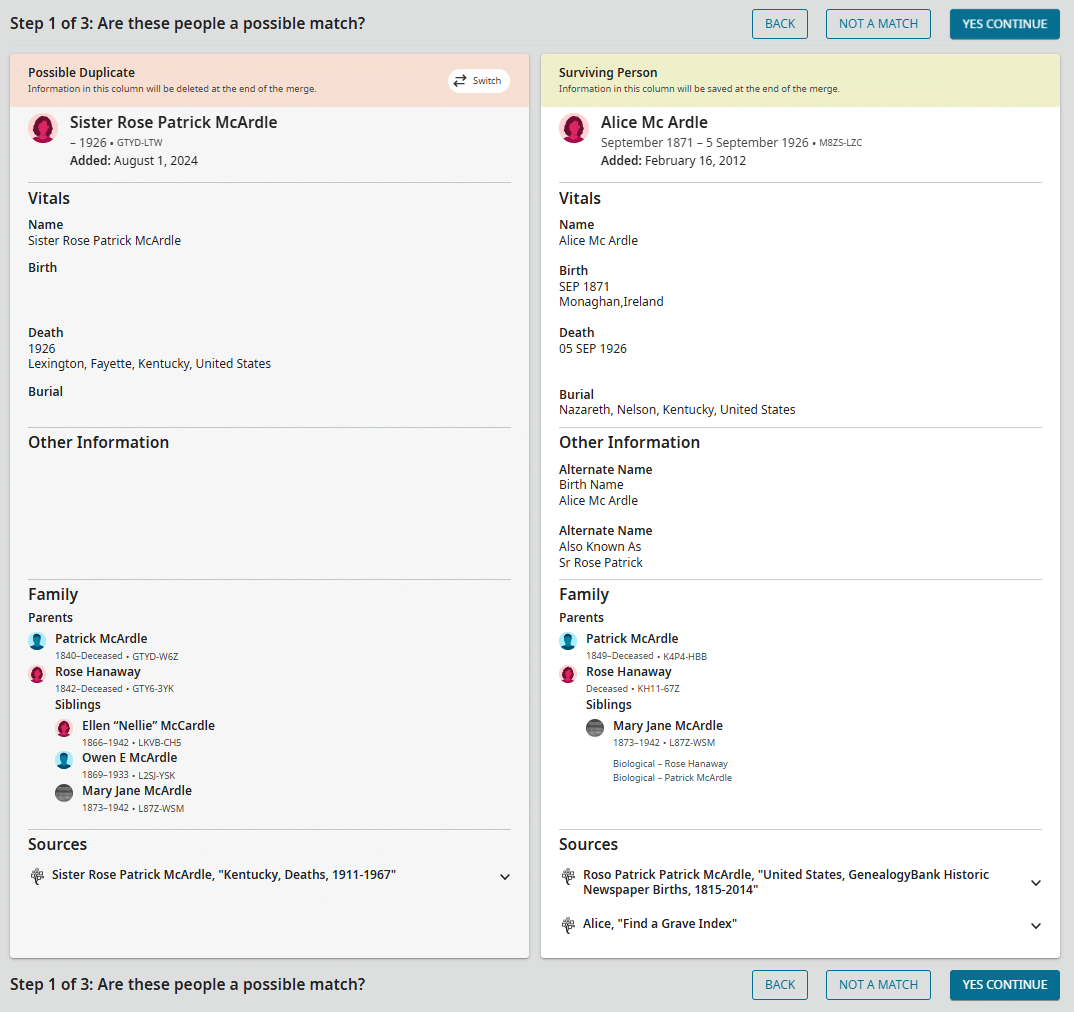
After you click on a Possible Duplicate, you’ll be shown details from the two person pages, side-by-side, and asked to confirm whether the two are a possible match. The system will indicate which entry will be saved at the end of the merge if you proceed; you can swap them if you like.
Review the details carefully, including dates, places, and relatives’ identities. Don’t merge person pages—even those with the same name and some similar data—unless you’re confident they match. Each was created with the intention of representing a specific person and may already be connected to records or other relatives.
2. Select details to replace
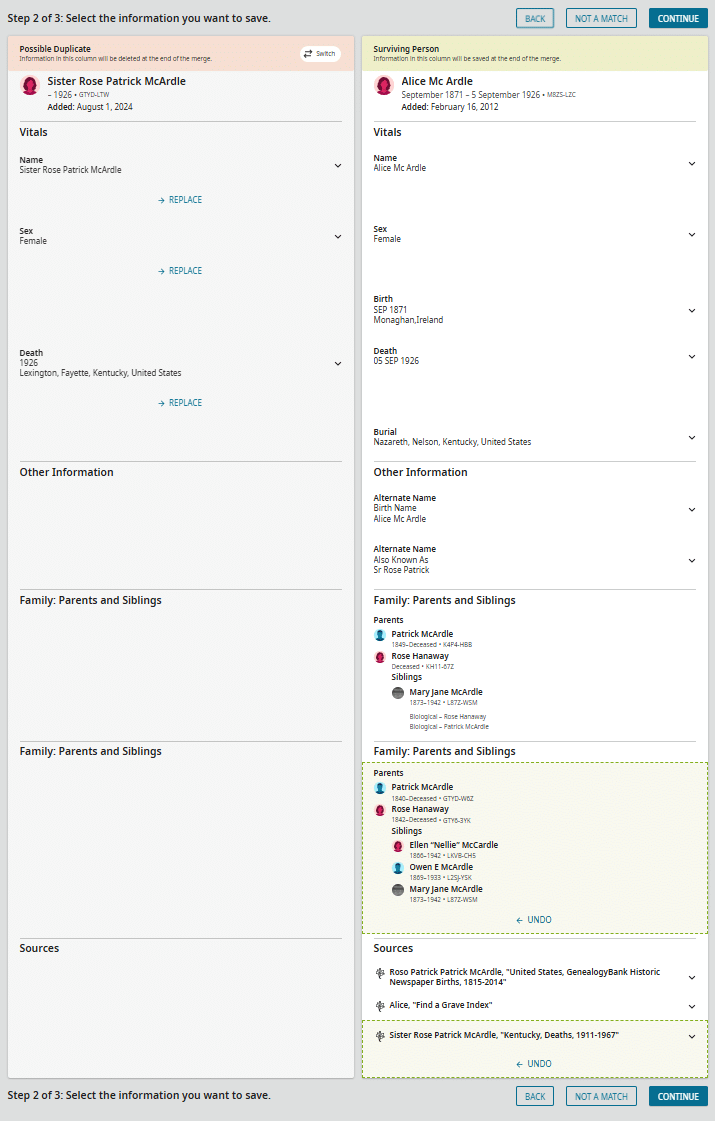
Select any data from the left side that should replace what is on the right side. Use the down arrows to see the date of the most recent change for each detail.
Take care not to overwrite more-specific or potentially more-accurate data. In this example:
- Name: The name on the right should be retained since it is her birth name. The one on the left (her religious name) should be entered in the surviving record as an alternate name, as has already been done.
- Death: The death data on the left has a less-specific date but does have a location, which is missing from the record on the right. The source for the left-side data has already been brought over the right (as indicated by the green dotted box under Sources). Make a note to manually update the surviving record with the full death data, once you’ve confirmed its accuracy in attached records.
- Parents and Siblings: Two separate sets of parents and siblings were identified for each person page, as indicated by PID numbers. The system has pulled the relatives from the left into the surviving record, essentially creating two separate families for Alice. Those parents and siblings will need to be compared and merged, as well.
3. Confirm your changes
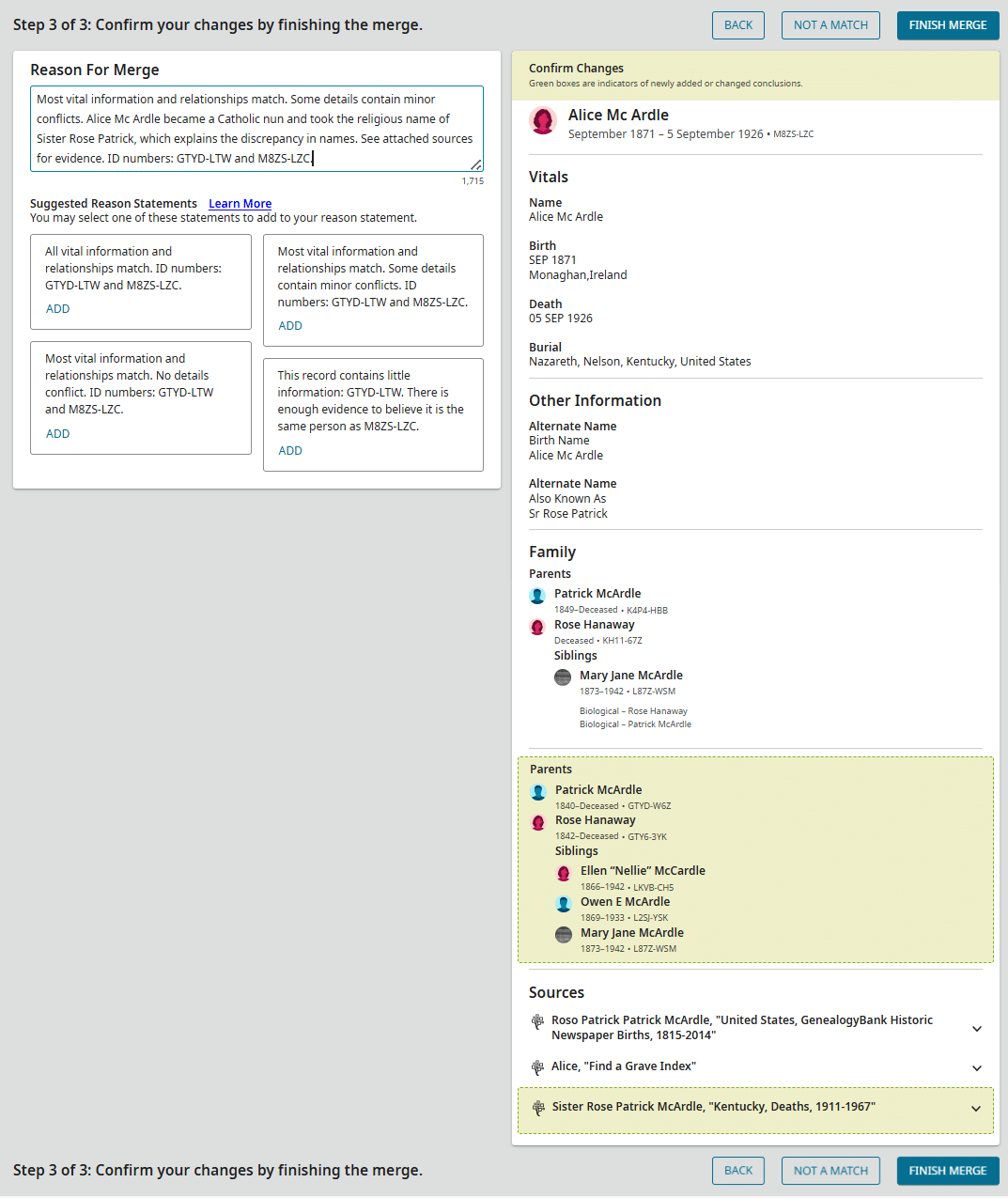
The new, merged profile will appear at right. You must provide a Reason for Merge—either your own or one of the suggested options (e.g., similar PD numbers or names). Once you’re satisfied with everything, click Finish Merge.
The merge will be logged under Latest Changes, where you can review or even and reverse it by clicking Merge Analysis. If you spot duplicate person pages yourself—especially common in a list of siblings—you can initiate a merge from a person page’s Tools menu. Copy the second person’s ID before clicking through to Merge by ID.
Repeat
The aforementioned is the basic process for using the FamilySearch global tree: Add yourself in, build on existing knowledge, extend what’s known, merge person pages to eliminate duplicates—and then repeat.
Take your time. The goal is to create person pages that uniquely identify specific people and clearly distinguish them from others who may have similar names or demographics. It’s better to add fewer, more-complete pages than a larger quantity of unsourced pages.
Concerned about others making changes to your work? Click the star icon next to Follow at the top of a person page. You’ll be alerted when changes are made. You can review changes, consider new evidence, appreciate new Memories, and (politely) debate any information you believe is incorrect. Collaboration is an intentional part of the Family Tree experience—don’t be shy.
Related Reads



A version of this article appeared in the September/October 2025 issue of Family Tree Magazine.