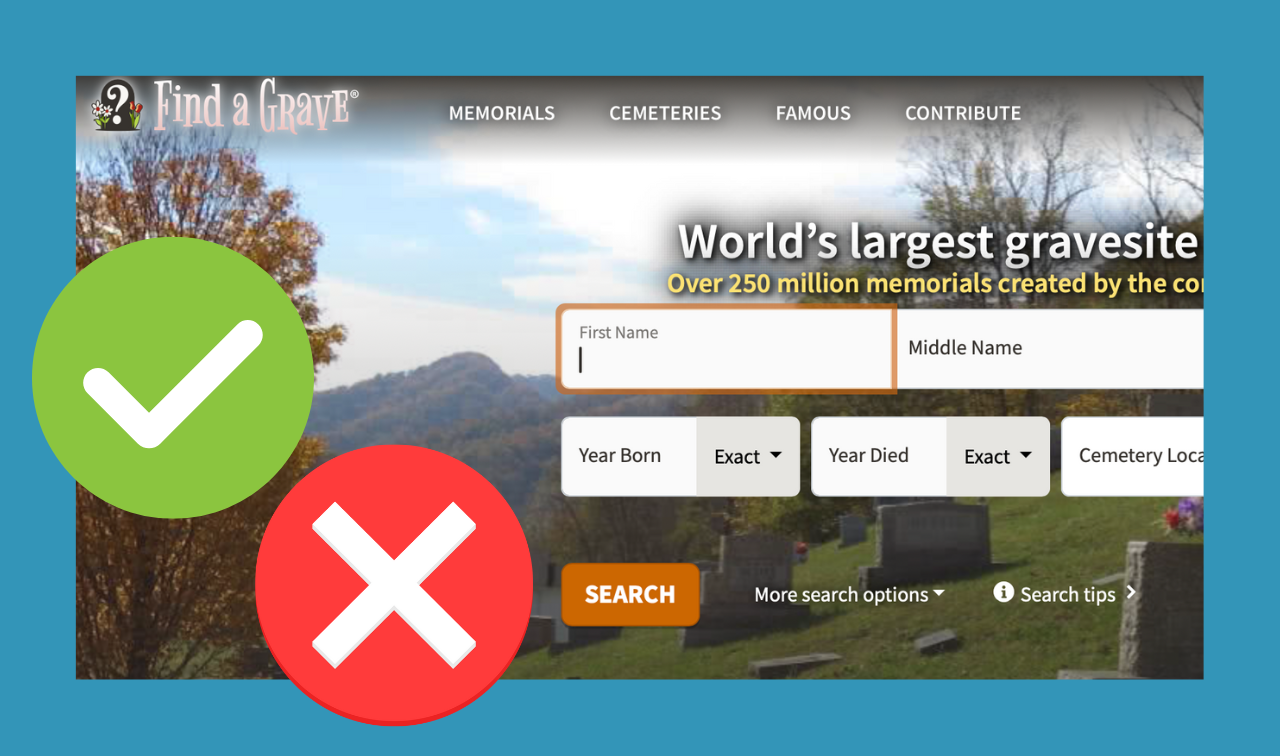
Crowdsourced tombstone database Find a Grave is an immensely useful website for finding information on deceased relatives—particularly if you’re not able to visit their gravesites in person.
The site’s 250 million online memorials make tombstones accessible to researchers worldwide and offer a free, user-friendly forum for hosting profiles of loved ones. And (as part of the Ancestry.com family of websites) it’s among the most widely used resources for family history information.
But like any source, Find a Grave can (and often does) contain factual errors. Tombstones may have been added to the site in bulk or by users unfamiliar with the family, and often contain details that weren’t inscribed on the tombstone.
And the site is so popular that it attracts both family historians and the general public. The latter might not be familiar with research best practices (such as the Genealogical Proof Standard) or genealogy conventions (such as source citations). Worse still, nefarious actors might intentionally doctor information or even whole memorials.
These three steps will help you verify the biographical details you see on Find a Grave—and hopefully correct them.
1. Compare Transcriptions to Photos
Review any uploaded photos of the tombstone. Can you validate the memorial says what is etched on the tombstone—and only what’s on the tombstone? (See No. 2.) Are there any letters or symbols that might have been misinterpreted by whoever transcribed the stone? If letters are hard to read, consider downloading the image and using photo-editing software to enhance the text.
In other cases, users have created memorials in bulk, digitizing even whole cemeteries in a single day. Such slapdash work could lead to mistakes: typos, incorrect photos, or mismatched text in page fields.
Also look for obvious errors on the tombstone itself. Were any names misspelled, or does it give the incorrect name or birth/death date? Because the person who provided the information on tombstones may or may not have had direct knowledge of the deceased’s birth name and birth date, genealogists consider tombstones to be secondary sources for those facts.
As a result, even properly transcribed stones might have fallacious information. The general best practice is to transcribe words—even “typos” and inaccuracies—as they appear. But that doesn’t mean they have to be added to a Find a Grave memorial.
2. Look for Source Citations
Many profiles contain details that weren’t etched on a tombstone, especially regarding family relationships. Memorial owners are free to tag other profiles as the deceased’s parents, spouse, siblings or children. And because Find a Grave doesn’t have an easy way to cite sources, so most users don’t.
The additional information you find in a Find a Grave profile may come from a variety sources—or no sources at all. Here are some of the most likely:
- Burial location often provides a clue to family relationships: spouses buried next to each other, people with the same surname in a lot, and so on. Maybe the tombstone’s photographer made assumptions (correctly or incorrectly) about family relationships as they worked.
- Obituaries are the most common source for information in Find a Grave memorials: In addition to death information, they also provide the names of next-of-kin (both living and deceased). Obituaries are also often freely available online through newspaper databases or funeral home websites, and many users even copy and paste the obituary into the page’s Bio Information section.
- Online family trees are another accessible web resource—and they have their own set of foibles. The information gleaned from trees is only as good as the original Find a Grave easily integrates with sister site Ancestry.com, so cross-references between it and Ancestry.com’s family trees are especially common.
3. Check Against Reliable Sources
In the absence of source citations, you’ll need to do some legwork to retrace the owner’s steps and validate their sources. Here’s how to validate the most-common sources of Find a Grave information:
- Burial locations: Visit the cemetery yourself to see how graves are (or aren’t) arranged in sequence. Look for other nearby stones that might contain clues. Compare the profile to that at BillionGraves, which more frequently includes GPS coordinates for tombstones.
- Obituaries: Run a Google search using a phrase from the life story to source the original document. It’s likely an obituary published on a funeral home website or in a digitized newspaper.
- Online family trees: Compare details with those in relevant tree profiles at major sites such as Ancestry.com, FamilySearch and MyHeritage. Each site allows you to search public-facing tree profiles and view any attached sources. You’ll have to determine for yourself if the details in those other trees are well-documented.
Of course, you can also compare the Find a Grave memorial with details you’ve already established in your own research.
Editing Find a Grave Memorials
Only a memorial’s owner can edit the details in it. Other users can merely suggest changes by clicking Suggest Edits, then filling out the relevant fields and clicking Save Suggestions.
By default, a memorial’s creator is also its owner. But owners can turn over control of a memorial to those who request it, such as a family member. You can request ownership for a relative’s memorial by clicking Suggest Edits, then Contact Manager.
In fact, Find a Grave prompts users to state their relationship to the deceased if the date of death is less than 12 months prior (an implicit request that only family members create memorials in such cases). But there isn’t a rule that only relatives who had first-hand knowledge of the deceased can create memorials; memorials for the recently deceased are simply restricted for three months after the date of death.
Related Reads


A version of this article was posted online in October 2025.